
Follow a deployment
Following a deployment means watching one customer's deployment from your side: the initial setup their admin runs, then the deployment it creates and the releases after it. Your team sees each status in the dashboard and the CLI, and knows when to step in and when the admin has to act.
The view is the same however the admin set it up. The admin can set up through any of the Deployment UX options:
- Send a link: the admin opens a setup link in the deployment portal, a branded setup page Alien hosts.
- Launch the portal from your product: a Deploy button in your product opens the same portal.
- Build it into your product: your own setup screen, with no portal.
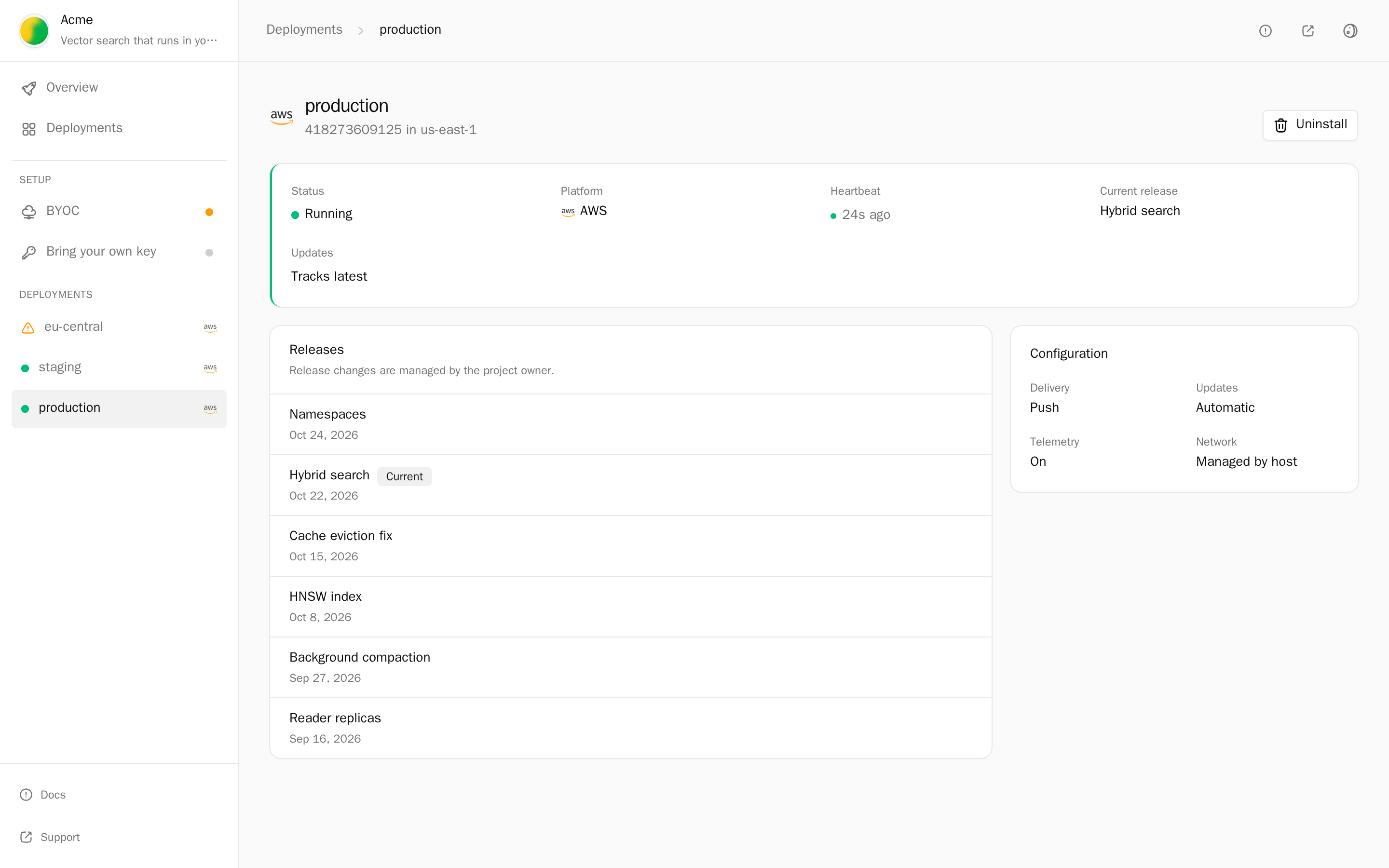
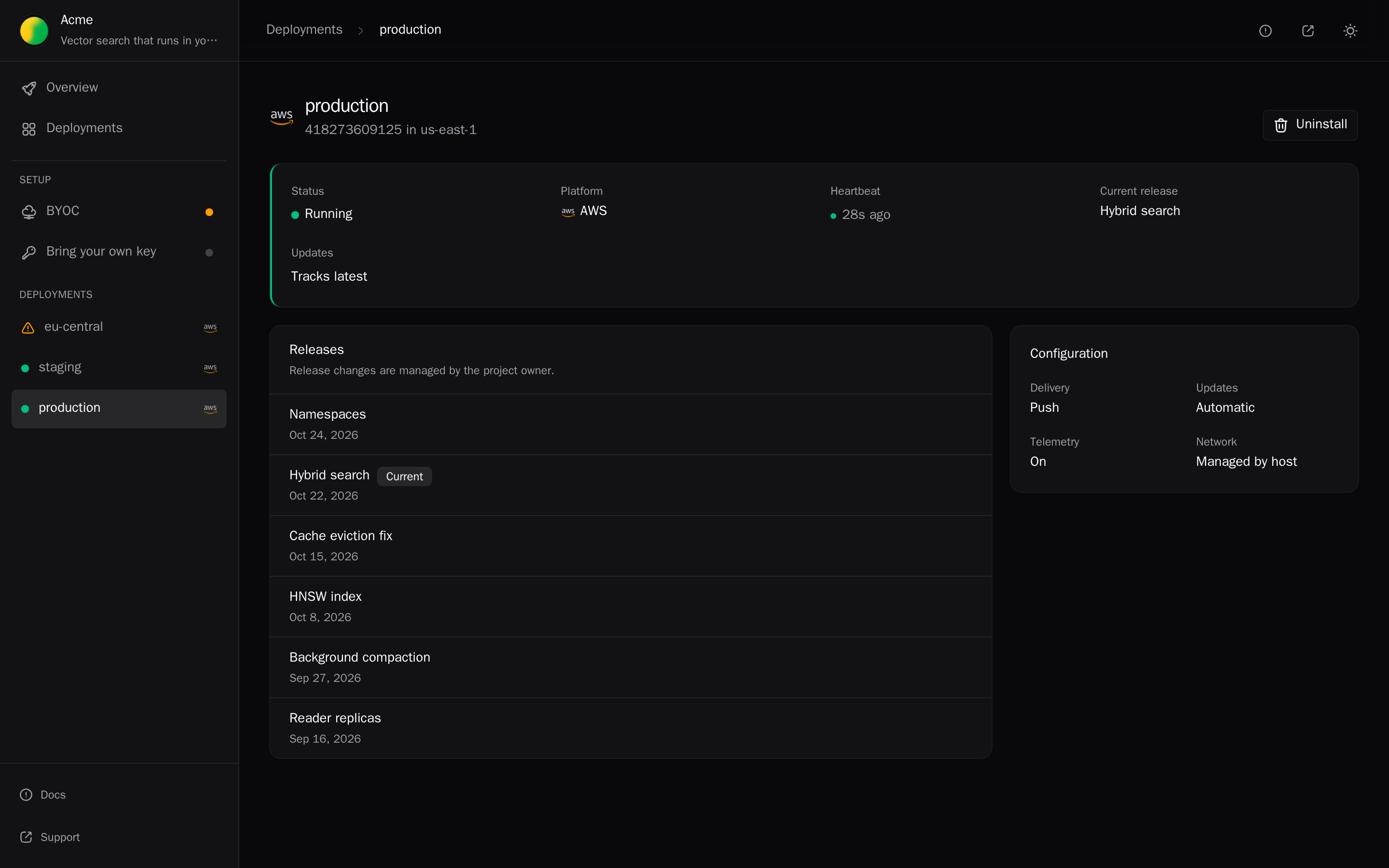
A deployment's life has two parts:
- Initial setup is the one-time step the admin runs with their own credentials. It creates the management identity Alien works through (an IAM role on AWS, for example) and the frozen resources, such as the bucket that holds the customer's data.
- Ongoing management is everything after. Alien rolls out releases and keeps live resources current without the admin, and never holds the admin's credentials.
The admin comes back only to retry a failed initial setup, apply a release that needs initial setup again, or finish removal. This page covers each.
Watch it appear
A deployment appears in your dashboard under Deployments as soon as the admin launches initial setup, as <group> / <name>, for example customer-1 / customer-1. Its status badge updates live; open it for the error, the events, and the actions.
Until the admin starts, the customer's deployment group (Alien's record of that customer) exists but holds no deployments. The group's Deployment links card shows each setup link as Never used or Last used with a time.
From the CLI, list deployments, then read one and its events:
alien deployments ls
alien deployments get customer-1/customer-1
alien deployments events customer-1/customer-1
To block until the deployment is ready, for example in a script, run alien deployments wait:
alien deployments wait customer-1/customer-1 --for ready --timeout 30mIt returns when the deployment is Running with the desired release applied. It exits with an error if the deployment fails first, or when --timeout passes (default 10m). Add --json for a stable result in scripts.
Run it after the deployment shows up in alien deployments ls: a deployment that doesn't exist yet ends the wait.
Statuses
The When to step in column names the buttons in the portal. If you built your own setup screen, it needs the same steps: see Build it into your product.
| Status | What it means | When to step in |
|---|---|---|
| Pending | The admin launched initial setup. The stack or Terraform run hasn't registered yet. | If it stays here for hours, the admin likely stopped in AWS or Terraform. Ask them to reopen the setup link: the portal resumes where they left off. |
| Preflights failed | A check before deployment found a problem in their environment, such as a short quota. | The error names the fix. The admin fixes it and clicks Check now in the portal. |
| Initial setup | Initial setup is creating the management identity and frozen resources. | No action. |
| Initial setup failed | Initial setup stopped with an error. | See Retry a failed initial setup. |
| Provisioning | Alien is creating the live resources and starting the workloads. | No action. |
| Waiting for secrets | The admin still has to write a secret into their own secret store. | The portal shows them where. Remind them if it stays here. |
| Waiting for machines | No Linux host has joined yet. | The admin runs the join command on each host. |
| Provisioning failed | Creating the live resources failed. | Read the error and click Retry. Live resources don't need the admin. |
| Running | The deployment is up and sends heartbeats. | Verify it from your product before you activate the customer. |
| Setup update needed | A release needs initial setup to run again. | See Releases that need initial setup again. |
| Teardown required | Alien removed its part. What initial setup created is still there. | See Remove a deployment. |
To show these statuses inside your own product, see Show deployment progress. For problems after Running, see Debugging.
Retry a failed initial setup
If initial setup fails, the deployment shows Initial setup failed with the error. The fix is usually in the customer's account: a quota, a missing permission, or a resource that already exists.
In the dashboard, click Retry on the deployment. From the CLI:
alien deployments retry customer-1/customer-1Initial setup runs with the admin's credentials, so it can only be retried with them, and the dashboard's Retry tooltip says so. In the portal, the admin then clicks Retry on their deployment page, which shows the step to repeat for their setup method. For a failed CloudFormation stack, they delete it in AWS first.
An admin who used the setup CLI fixes the reported error and reruns the same command, with the same deployment name, platform, and configuration:
acmectl deploy --config deployment.tomlIt resumes the resources the first attempt created, so it must run against the same cloud account, project, or subscription.
Releases that need initial setup again
Most releases roll out without the admin. The exception: the management identity can't create frozen resources or grant itself new permissions.
So Alien holds any release that adds, removes, or changes a frozen resource or needs a new permission. The previous release keeps running.
Your dashboard shows Setup update needed on the deployment. The admin sees Infrastructure update needed in the portal, and Continue update shows the steps for their setup method:
| Setup method | What the admin does |
|---|---|
| CloudFormation | Opens the existing stack, chooses Update stack, and replaces the template with the new template URL from the portal |
| Terraform | Changes the module source and version to the ones the portal shows, then runs terraform init -upgrade, terraform plan, and terraform apply |
| CLI | Runs acmectl deploy --name <name> --setup-update --token-file setup-token |
| Google Login | Signs in with Google again |
| Helm | A helm upgrade can't apply it. The portal tells the admin to keep the current release and contact you. Avoid frozen-resource and permission changes for Helm installs. |
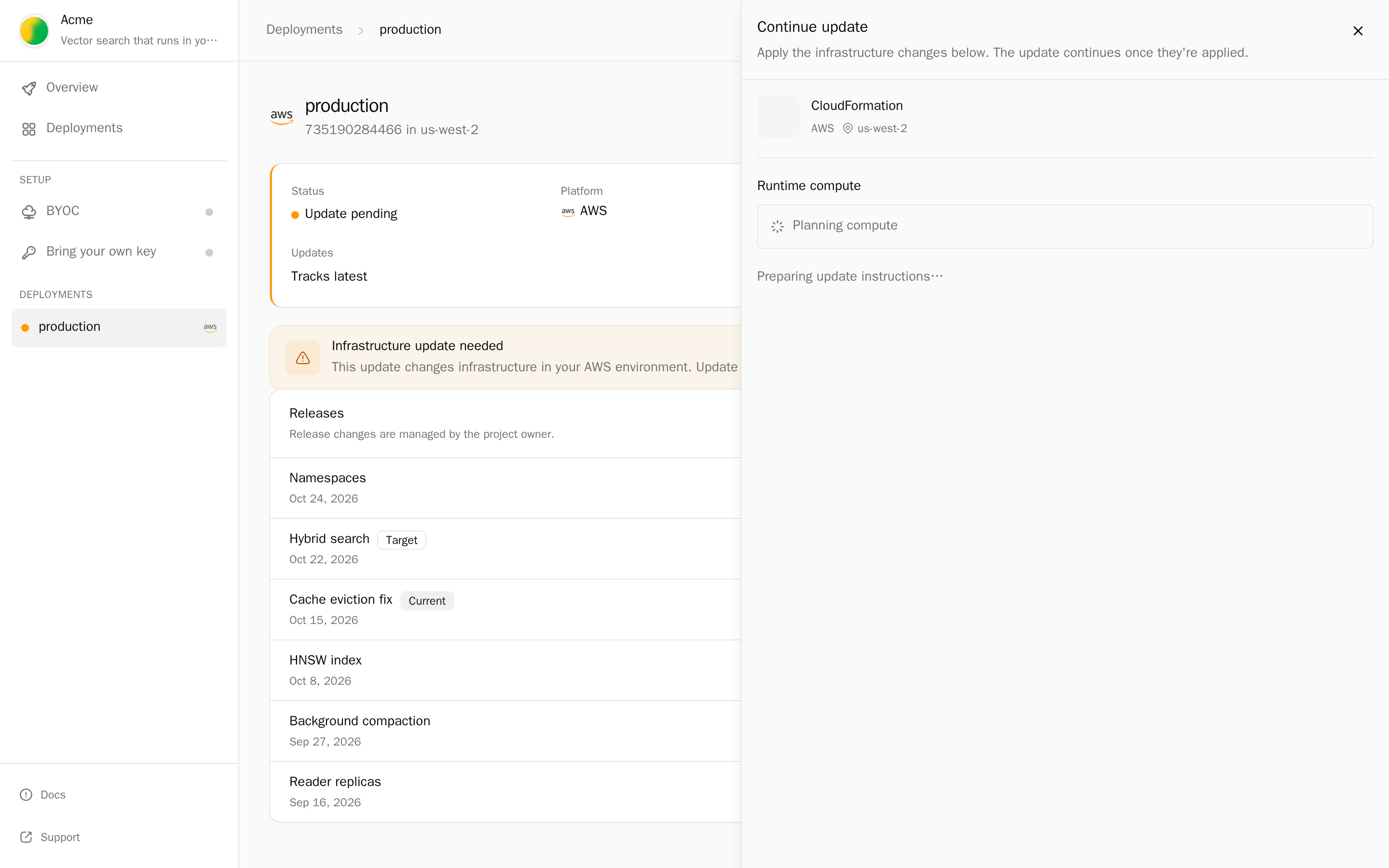
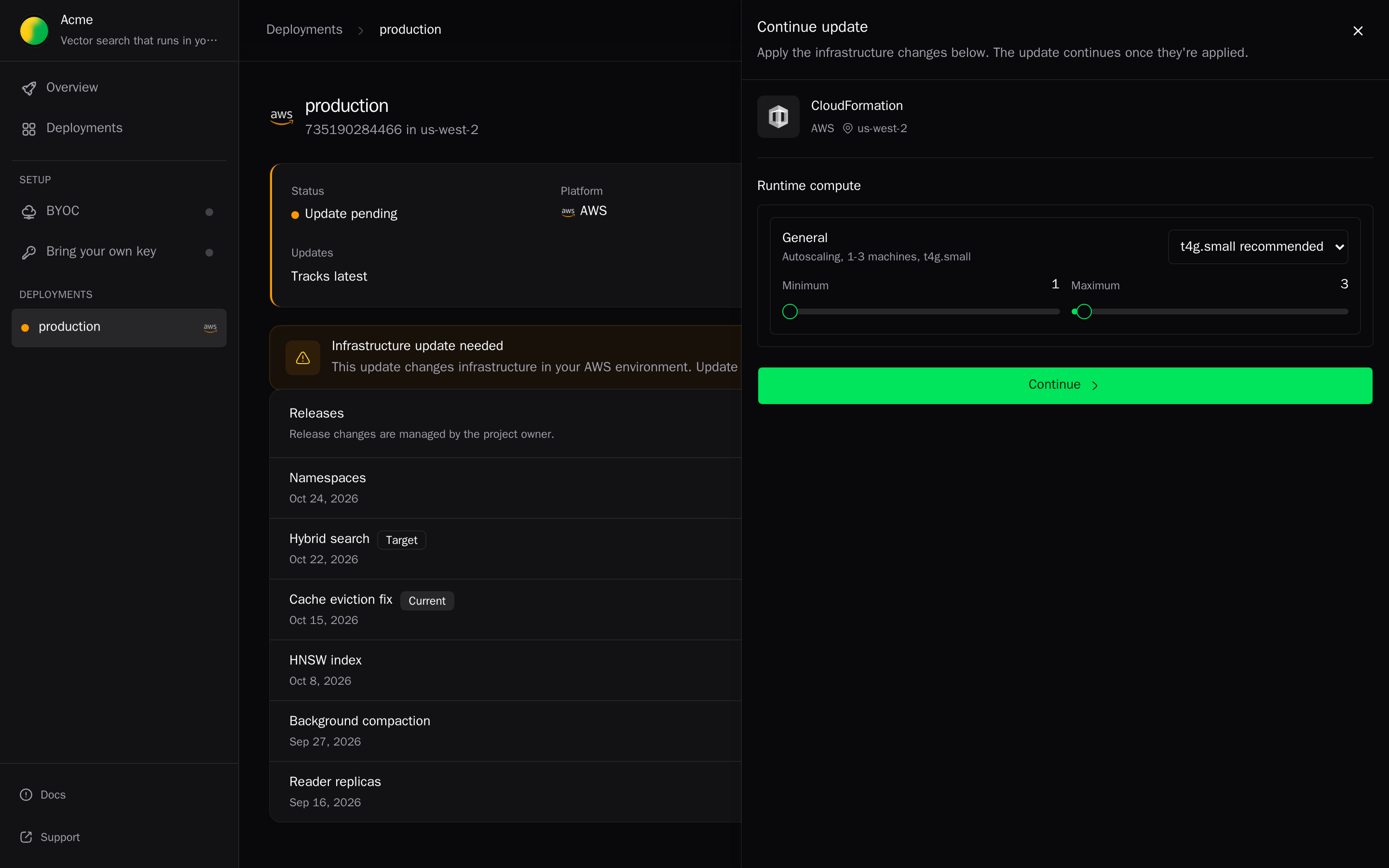
The held release continues once the change is applied. Keep such releases rare, and tell the customer before you ship one.
Deployments in your own account can skip this with automatic setup. See Single-tenant in your cloud.
Remove a deployment
Alien deletes the live resources it created. The frozen resources and the management identity belong to initial setup, so whoever ran initial setup finishes removal. Start from your side first, so the admin's last step finds nothing left to delete.
In the dashboard:
- Open the deployment and its actions menu.
- Click Delete deployment.
- Type the deployment's name and click Delete Deployment.
From the CLI:
alien deployments delete customer-1/customer-1To remove deployments from your own product, see Remove a deployment.
When Alien's part is done, the status is Teardown required until the admin removes what initial setup created. The portal shows the admin Finish uninstall with their step:
| Setup method | Last step |
|---|---|
| CloudFormation | Delete the stack: aws cloudformation delete-stack --stack-name <stack> --region <region> |
| Terraform | In the setup folder, set TF_VAR_token (and on AWS TF_VAR_management_external_id) and run terraform destroy. If the module created encryption keys, run its detach-retained-keys.sh first. |
| Helm | helm uninstall <release> --namespace <namespace> |
| Google Login | Click Continue with Google on Finish uninstall |
| CLI | acmectl destroy --deployment-id <id> with the credentials used for initial setup |
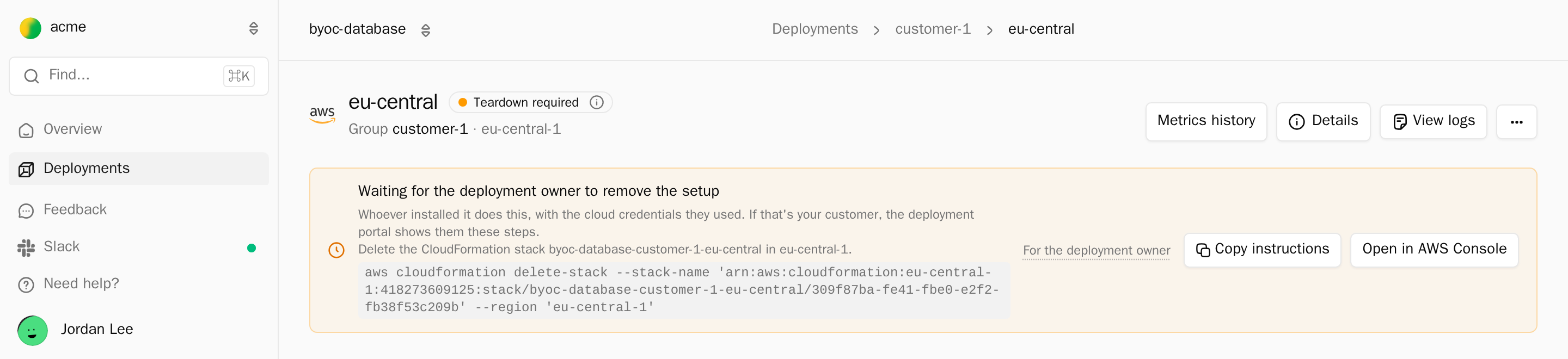
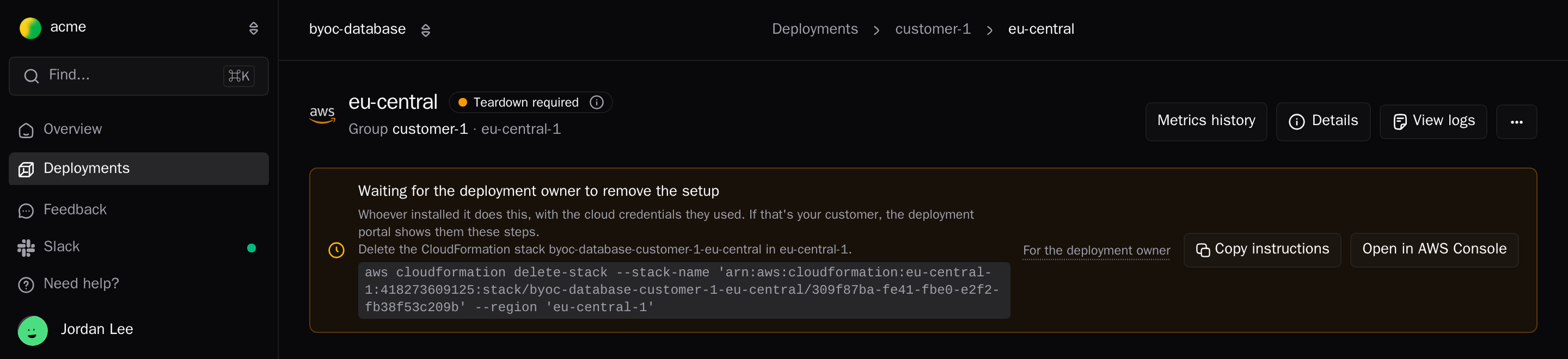
The status then becomes Deleted. Anything initial setup didn't create, such as an existing VPC, and any snapshots kept on deletion stay until the customer deletes them.
To drop Alien's record without touching the customer's environment, for a deployment whose initial setup resources are already gone, use Forget record in the delete dialog, or pass the deployment's name to --force:
alien deployments delete customer-1/customer-1 --force customer-1Next
- Deployment portal: the portal from the admin's side
- Debugging: errors, events, and logs for a running deployment
- Push, pull, and air-gapped: how updates reach a deployment after initial setup