
Single-tenant in your cloud
A single-tenant deployment is a copy of your stack dedicated to one customer and running in your cloud account, not theirs. Customers ask for one when they need isolation, a specific region, or their own encryption key. It's an ordinary Alien deployment: same alien.ts, same releases, same dashboard.
Architecture diagram. customer-1 deployment (Containers, Postgres, S3) connects outbound to the Your hosted app (Dashboard, Billing, API), via https 443.
Everything else in your product can stay shared. Only the part that holds the customer's data, or needs their region, gets a dedicated copy that Alien deploys and updates. This is the control plane ⇄ data plane design, with both halves in your own account.
A deployment's life has two parts, and here you run both:
- Initial setup: the one-time step, which you run with your own cloud credentials. No customer admin runs it, so it needs no Deployment UX.
- Ongoing management: everything after. Alien's manager, the service that holds your releases and deployments, rolls out each release.
The account's platform guide (AWS, Google Cloud, Azure) describes what initial setup creates there. What differs when the account is yours:
- You deploy from the dashboard or the CLI.
- Releases can change infrastructure without rerunning initial setup.
- The customer can still hold the encryption key, on AWS.
Why dedicate one
In a shared deployment, one set of servers holds credentials that can read every customer's data, and only a WHERE tenant_id = $1 clause keeps customers apart. A dedicated deployment changes that:
- A break-in reaches one customer. Each deployment has its own database, storage, and credentials.
- Data stays in the customer's region. Put customer-2 in India and customer-4 in the UK.
- No noisy neighbors. One customer's load doesn't slow another's requests.
- It can use the customer's key. See Customer-managed key on AWS.
Run by hand, single-tenant copies drift: a patch reaches some customers months late. With Alien, each release reaches every dedicated deployment on its release channel, and you roll out, pin, and roll back per customer.
It's also a good first step when you don't yet know which part of your product belongs in the customer's account: dedicate it first, then decide.
Deploy one
In the dashboard:
- Open Deployments and click Deploy release.
- Choose Deploy to your environment and enter the Environment name, for example
customer-1-eu. - Pick the Platform, then Configure (region, compute, network), the Install method, and any Inputs.
- Run initial setup with your own cloud credentials: Launch in AWS Console, Continue with Google, Prepare Terraform, or the CLI command shown.
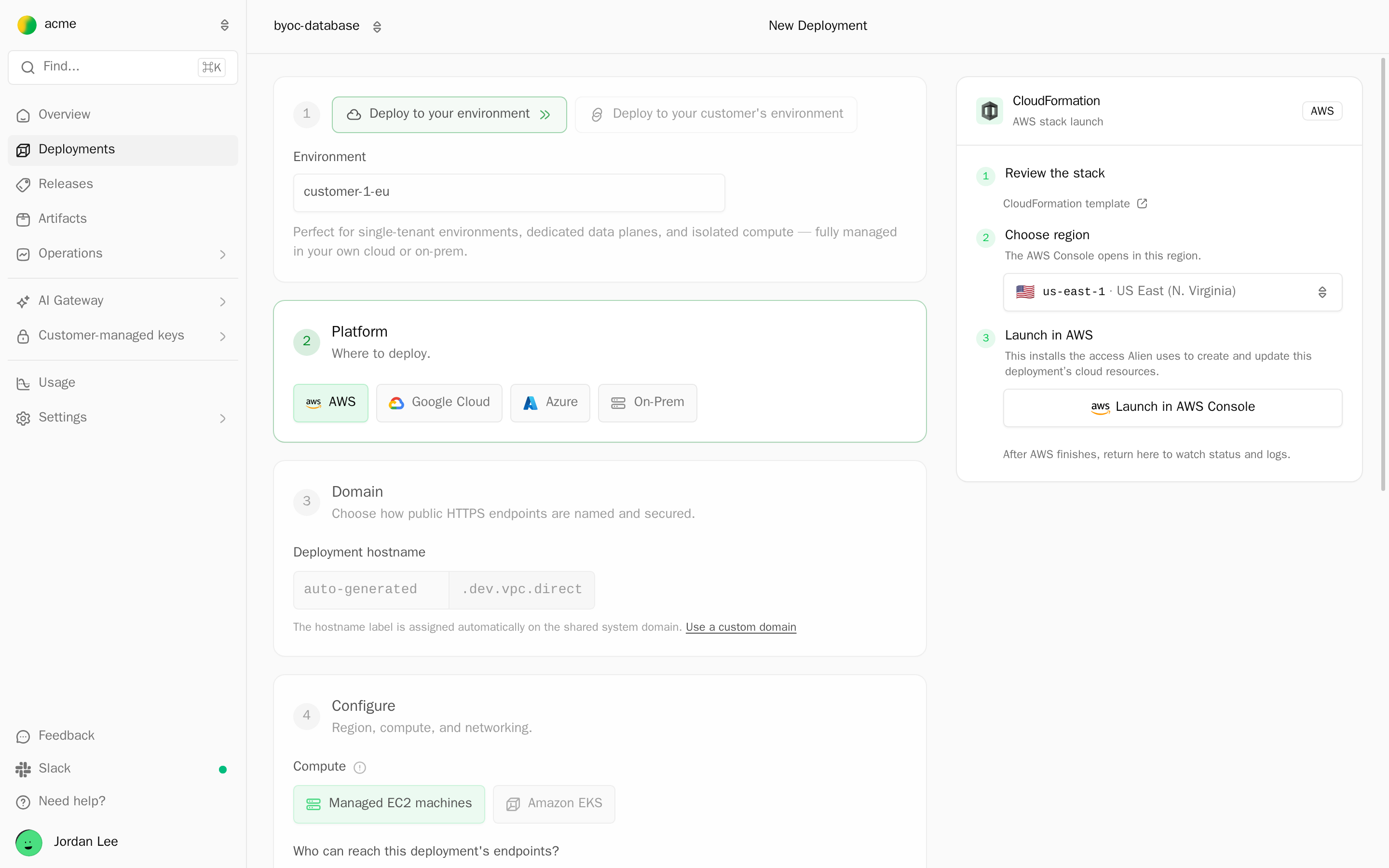
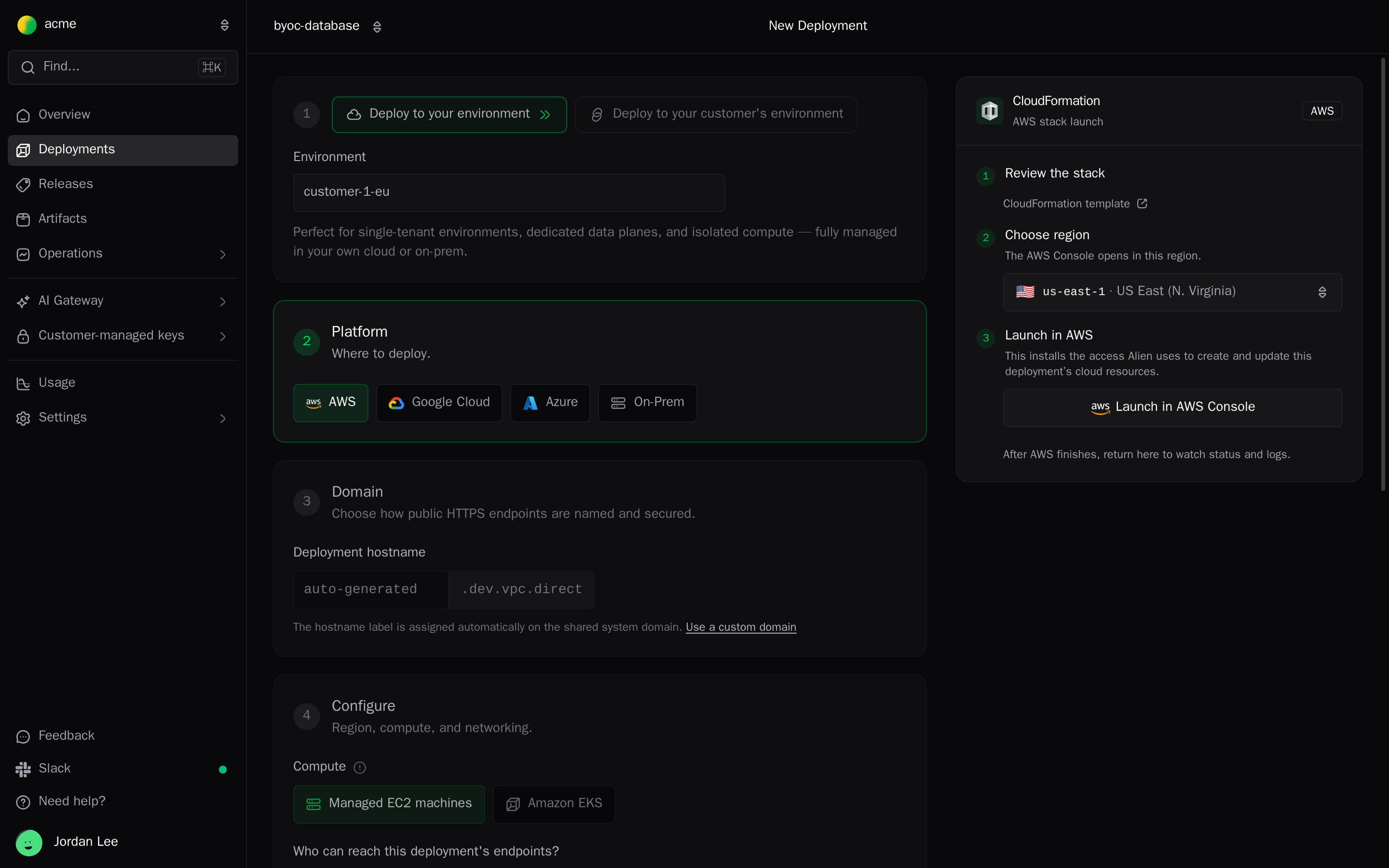
The dashboard then opens the new deployment.
From the CLI, with credentials for your AWS account in the environment:
alien deploy --name customer-1-eu --platform aws --deployment-group customer-1--deployment-group places the deployment under the customer's deployment group, Alien's record of one customer, which your product finds by the customer's external ID. Omit the flag for an environment of your own, such as staging.
To skip initial setup, let Alien create a separate AWS account, Google Cloud project, or Azure resource group for each customer: see Subaccounts.
The same stack can also back your shared, multi-tenant deployments, one per region. Alien treats each one as a deployment that follows a release channel.
Infrastructure changes without rerunning initial setup
A frozen resource is one only initial setup may create or change, such as the bucket or database that holds data. In a customer's account, a release that adds a frozen resource or a permission waits for their admin to rerun initial setup.
In your own account, you can grant ongoing setup authority instead, so those releases apply without a rerun:
alien deploy --name customer-1-eu --platform aws --automatic-setupAutomatic setup on AWS, Google Cloud, and Azure refuses a stack that needs something only a setup package can create, with AUTOMATIC_SETUP_RESOURCE_UNSUPPORTED. Use manual setup for a stack with any of these:
- A
Key, an Email resource, a Kubernetes cluster, or anexperimental/aws-opensearchresource. - On AWS, Storage with CORS origins, or a
management: { extend }grant scoped to one resource rather than"*". - A
management: { override }profile. - On Azure, a Sandbox.
The dashboard uses automatic setup for Deploy to your environment on AWS, Google Cloud, and Azure when the stack supports it:
- With the CLI method, it says: Allow future releases to create, change, and remove infrastructure; new cloud permissions may still need your approval.
- With CloudFormation, the launch step says This installs the access Alien uses to create and update this deployment's cloud resources.
Deployments created without automatic setup keep manual setup: rerun alien deploy with the same credentials when a release shows Setup update needed.
Customer-managed key on AWS
A single-tenant deployment in your AWS account can encrypt its data with a key the customer controls. The key can live in the customer's AWS KMS, Google Cloud KMS, or Azure Key Vault. It covers Aurora, S3, and persistent EBS volumes.
A stack with a Key deploys only through CloudFormation or Terraform with manual setup: alien deploy refuses it with SETUP_METHOD_CANNOT_INSTALL_RESOURCES.
- Declare a
Keyand pass it to each store inalien.ts. See Customer-managed keys in a deployment. - The customer connects their key through a setup link that includes Encryption key (setup item
keys). See Customer-managed keys. - When you deploy the environment in the same deployment group, choose the customer's key under Encryption key instead of Create a key in this AWS account.
The key choice can't change after the deployment is created.
If the customer revokes the key, the deployment shows Customer key unavailable and Alien stops changing the resources that use it. It never replaces them.
When the key is restored, the same database and volumes recover. Uninstalling schedules the AWS key for deletion after 7 days.
Next
- Subaccounts: let Alien create an account per customer and deploy into it
- AWS: move the same deployment into the customer's account
- Customer-managed keys in a deployment: declare the key in
alien.ts - Deployments: manage many deployments
Linux servers
A deployment on a customer's own Linux hosts: what they need, the join command, the machine agent that pulls releases, offline behavior, and removal.
Setup packages
The setup packages Alien builds from each release for initial setup (CloudFormation, Terraform, Helm, and a CLI): when they're built, versions, hosting, settings, and previews.