
Troubleshooting
Troubleshooting maps each symptom you see on a deployment to what it means, who has to fix it, and what to run. Every investigation starts with these commands:
alien deployments get customer-1/us-east-1
alien deployments events customer-1/us-east-1
alien logs --deployment customer-1/us-east-1 --level error --since 1h
In the dashboard, the deployment page shows the same status plus a Needs attention list. Each item says who acts: For your team or For the deployment owner (the customer's admin). Debug a deployment explains each command's output.
| Symptom | Section |
|---|---|
| Running, but replicas fail or users see errors | Running but not healthy |
| Running, but on an older release | Running an older release |
| A failed status, such as Update failed | Failed initial setup or update |
Setup update needed, or retry says cannot be retried | Held release |
| Update not confirmed | Update not confirmed |
| Pending, Updating, or Initial setup for too long | Stuck in progress |
| Not reporting | Not reporting |
| Waiting for secrets | Waiting for secrets |
| Customer key unavailable | Customer key unavailable |
| No logs, or a search returns nothing | Logs are missing |
| Teardown required, or a delete that doesn't finish | Teardown required |
| An error from the CLI itself | CLI errors |
| Remote Operator setup, operations, or install commands | Remote Operator |
Running but not healthy
Running means the deployment applied its target release. It doesn't mean every replica works, or that your service answers. Check health separately:
- Unhealthy replicas: the release applied but the code fails. Read the logs, then fix forward or roll back.
- The endpoint fails: status doesn't call your endpoint. Call it from where your product calls it, then search
alien logs --deployment <deployment> --system --level errorfor proxy, image pull, or disk errors. - Release not confirmed:
alien deployments wait --for readychecks that the current release equals the desired one. A healthy replica from the old release is not a successful rollout. - Not reporting: the status shown is the last report. See Not reporting.
Running an older release
The deployment keeps serving its current release while a newer one doesn't land. Compare Current release and Desired release in alien deployments get, then read its Deployment updates table:
| You see | Means | Do |
|---|---|---|
| Action required asks to apply the updated setup | The release is held for initial setup | See Held release. |
| The rollout row shows Needs inputs | A required input is missing | Provide it with Edit inputs on the deployment page. |
| The deployment is pinned | It stays on its pinned release | alien deployments pin <deployment> with no release unpins it. |
| The update failed | Each new release fails while the old one serves | See Failed initial setup or update. |
| The update is queued or updating | It's still in progress | alien deployments wait <deployment> --for ready and read events. |
Failed initial setup or update
A step failed. During an update, the previous release keeps serving. Read Failed resources in alien deployments get:
- Fix the first failure. Resources marked
Resource was not deployed because resource '<id>' failedwere interrupted by another failure. Fix the resource under Failed resources; the interrupted ones deploy on retry. - Look past wrappers.
Polling timed out after N attempts …, a failed health check, andCrashLoopBackOffonly say the resource stopped making progress. Searchalien logs --level errorandalien logs --system --level errorfor the first startup error. - Decide who fixes it. Code or configuration errors are yours: fix them and release again. Cloud errors such as
AccessDenied, an invalid principal, or a quota limit are in the customer's account: the admin fixes them. - Retry. Retry from the deployment page (Retry) or with
alien deployments retry <deployment>, thenalien deployments wait <deployment> --for ready.
A new release fixes code, not the environment. Disk, quota, and permission failures come back until someone changes the environment.
| Status | Usual cause | Fix |
|---|---|---|
| Preflights failed | The stack or settings fail a check, such as a quota. | Read the error, adjust, retry. |
| Initial setup failed | Initial setup couldn't create frozen resources or the management identity. | The owner fixes the cause and reruns initial setup with their credentials. |
| Provisioning failed / Update failed | A live resource failed to create or update. The previous release keeps serving. | Read the error and logs, fix forward, then Retry. |
| Refresh failed | Alien couldn't read the environment's state. | Check the management identity and network, then retry. |
| Delete failed / Teardown failed | A resource couldn't be removed. | Remove the blocker, then retry. |
When the admin used the CLI and the first initial setup failed, alien deployments retry prints the setup command to rerun. Initial setup runs with the admin's credentials, so it resumes only when they rerun it against the same account, project, or subscription. See Retry a failed initial setup.
Held release
The deployment shows Setup update needed and the rollout row shows Waits for owner. It keeps running its current release.
The release changes what the customer's initial setup owns: it adds, removes, or changes a frozen resource, or needs permissions the management identity (the cloud role Alien uses for ongoing management) doesn't have.
In alien deployments get, the Deployment updates table shows reasons such as Cannot add frozen resources during update, Frozen resource '<id>' was modified, or Permission profile '<name>' was modified, and Action required says Apply the updated setup to continue this update.
The customer's admin reruns initial setup with their own credentials. The held release then continues on its own. See Held releases for the ways to rerun it.
Retrying doesn't help, because the deployment is Running:
alien deployments retryrefuses withDeployment '<id>' is in status 'running' and cannot be retried.alien deployments wait --for readyfails right away because the deployment settled on its older release.
Update not confirmed
The update was accepted, but its rollout wasn't confirmed in time. It may still finish and restart replicas, so treat it as in progress: don't start migrations or load tests against it yet.
Select Check again on the deployment page, or run alien deployments retry <deployment>. A newer release or a pin replaces the pending target.
Stuck in progress
The deployment stays in Pending, Update pending, Initial setup, Provisioning, or Updating longer than usual. The top-level status can look calm while one resource retries the same error.
- Read
alien deployments events <deployment>for a step that repeats. - Search
alien logs --deployment <deployment> --system --since 2hfor an error that repeats. - Read
alien deployments get <deployment> --jsonand look at each resource'sstatusanderror. A resource can be retrying a cloud permission or quota error. - If the error is in the customer's account, the admin fixes it. Alien keeps retrying and continues once it can.
retry only applies to failed statuses. For any other status it refuses with cannot be retried.
When nothing above explains the wait, contact Alien support with the deployment ID, the time window, the events output, and your CLI version (alien --version).
Not reporting
The deployment's last heartbeat, the periodic report it sends to Alien, is more than 5 minutes old. The status shown is its last report. Workloads keep running while Alien is unreachable.
- On a deployment that runs on machines, run
alien deployments machines <deployment>. Fresh per-machine heartbeats mean the hosts are up and connected; the problem is in reporting, not an outage. - Run
alien deployments resources <deployment>andalien logs --deployment <deployment> --system --since 30m. - When nothing reports, check the environment's outbound HTTPS. The environment or its network is down, or a firewall change blocks it. The customer's admin fixes that.
Treat stale inventory as a reporting problem first, not proof that a resource is down.
Waiting for secrets
Waiting for secrets means a required secret that the customer provides is missing. Workloads start once the value is present.
These secrets never pass through Alien. The customer writes them into their own secret store, and the deployment page shows where: AWS Systems Manager Parameter Store, Google Secret Manager, Azure Key Vault, or a Kubernetes Secret. See Inputs and secrets.
If the missing input is one you provide, the page shows Deployment input needed with Edit inputs.
Customer key unavailable
The customer revoked or disabled the key used for customer-managed keys, or Alien lost access to it. The Encrypt/Decrypt API returns KEY_UNAVAILABLE (HTTP 503) within minutes of the change.
Alien keeps the resources. When the customer restores access to the key, the deployment recovers on its own without data loss.
Logs are missing
Check these in order:
- Logs aren't collected: the deployment's telemetry setting is Off.
- Logs aren't connected yet: the deployment hasn't connected to a manager, the Alien server that collects its logs.
- Not reporting: a disconnected deployment sends nothing new. See Not reporting.
- Platform logs are hidden: image pulls, mounts, and credential errors appear only with
--system. - The window is too short:
alien logssearches the last hour by default. Widen it with--sinceor--from. - Remote Operator on Kubernetes collects logs only from Pods that match the label scope chosen in setup.
Teardown required
Teardown required means Alien removed what it manages. The resources the initial setup created belong to the customer, so the owner deletes them the same way they set it up, for example by deleting the CloudFormation stack.
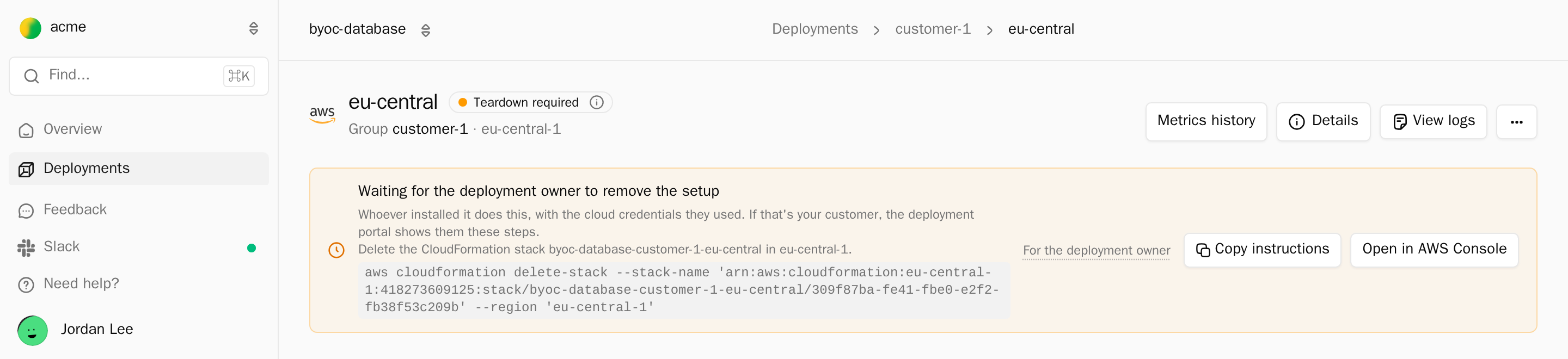
See Remove a deployment for what the customer sees.
When removal doesn't finish:
- The stack deletion failed. Check the stack in the cloud console.
DELETE_FAILEDnames the resource that blocked it, often a non-empty bucket, an attached volume, or a network still in use. The owner removes the blocker and deletes the stack again. - The stack was mid-update. Delete the deployment first with
alien deployments delete <deployment>, then delete the stack. - The resources are already gone, but the record stays. Remove only Alien's record with
alien deployments delete <deployment> --force <deployment-name>, or Forget record in the delete dialog. The name is the confirmation, and--forcecan't be combined with--yes. Do the same for a deployment that never created anything.
Never force-delete a deployment whose resources still exist: they keep running in the customer's account with nothing managing them.
After removal, some resources stay on purpose:
- frozen resources, such as a bucket with the customer's data
- snapshots kept on deletion
- anything initial setup didn't create, such as an existing VPC
- on Azure, key vaults in their soft-delete retention period
Check the account by name prefix or tags before you call removal complete.
CLI errors
| Message | Fix |
|---|---|
Use a deployment ID like dep_... or <deployment-group-name>/<deployment-name>. | Pass the ID or the group-qualified name, not the bare deployment name. |
No project is linked … | Pass --project <name>, or run alien link in your repository. |
A JSON parse error, such as unknown field … | The CLI is older than the API. Run alien upgrade, then repeat the command. |
Deployment '<id>' is in status '<status>' and cannot be retried | Retry applies only to failed statuses. Read the Deployment updates table, or see Held release. |
DEBUG_ACCESS_REQUEST_REQUIRED | Rerun with --request-access, or create one with alien access-requests create, and wait for approval. |
FEATURE_NOT_SUPPORTED from alien debug exec or shell | They work on Your machines and Local deployments. Elsewhere use alien commands invoke or alien debug with an access request. |
Limit must be between 1 and 1000. | Narrow --from and --to and run several queries. |
--from or --to rejected | Use RFC 3339 with a zone, for example 2026-01-15T09:00:00Z. |
Remote Operator
| Symptom | What to check |
|---|---|
| Setup stays on Connecting test installation | The pod or ECS task is running, the credentials Secret exists, and the namespace allows outbound HTTPS. |
| Installation needs attention | The last heartbeat is older than 5 minutes. Check the pod or task and its outbound connection. Don't generate new values for a registered installation. |
An operation fails with forbidden | The operation's rule is missing from the Operator's Role or cloud identity. Enable an operation that declares it, then apply Permissions need an update. |
Access is required to run <plugin>/<operation> | The operation needs approval. Add --request-access or create an access request. |
DEBUG_ACCESS_REQUEST_REQUIRED | Every debug session needs an approved access request for that tool. |
When an operation fails, check its dependencies in this order and fix the first one that fails:
- The operation is selected in Alien.
- It's present in the generated Operator image.
- Kubernetes RBAC or the cloud identity allows it.
- The target is reachable over the network.
- The target accepts the credential.
Don't grant broad cluster access as a shortcut.
Install and upgrade commands
The generated commands and the chart check the target before they change anything. When a check fails, they print one of these messages and stop.
| Message | What to do |
|---|---|
The existing setup-owned credentials Secret differs from operator-credentials.yaml. Refusing overwrite. | Use the operator-credentials.yaml that belongs to this installation. Don't overwrite the Secret. |
The setup-owned credentials Secret <namespace>/<name> is missing. ... | Run the generated install or enable command, which creates the Secret first. |
The setup-owned credentials Secret encryption key does not match remoteOperator.existingSecret.encryptionKeySha256. | Use both files from the same Generate test values result. |
This exact Remote Operator installation completed previously. Register a new installation instead. | The installation was installed and uninstalled before. Register a new one. |
The shared access-request CRD differs from this reviewed chart. | Stop. A cluster administrator must check compatibility for every installed Operator. Helm never changes the CRD. |
The identity volume is missing. ... | Restore the identity PersistentVolumeClaim. An upgrade never creates a new identity. |
Remote Operator cannot be enabled on the initial Helm install. | Install the product release with the Operator disabled, then run the enable command. |
remoteOperator.bootstrapIdentity has already been consumed by this release. ... | Upgrade with remoteOperator.bootstrapIdentity=false. |
Disabling Remote Operator on an existing release deletes its workload and permissions. ... | To remove the Operator, use the guarded removal with remoteOperator.confirmRemoval. See Remove only the Operator. |
Recover the failed or pending Helm revision first ... | The release isn't deployed. Use guarded recovery. Don't delete Helm release Secrets or the identity volume to clear a lock. |
Use Helm 3 or 4 for this reviewed chart. | Install Helm 3.13 or later, or Helm 4. |
AWS account mismatch: expected <id>, got <id> | Switch to credentials for the account entered in setup. |
Choose at most one subnet per Availability Zone, or supply an existing EFS filesystem and access point | Remove extra subnets, or use existing EFS storage. |
This installation's EFS mount targets use subnets ...; keep the same subnets in the same order | Enter the original subnets in the original order. |
Existing registration secret uses customer-managed KMS key ... | The <stack>-registration secret must use the default aws/secretsmanager key. |
Registration token is required / curl is required to verify the registration token | Paste the unexpired token from setup, and install curl. Every bootstrap attempt before registration prompts for the token; updates don't. |
Could not confirm this setup token belongs to an unregistered stack; no secret was changed | The token is expired, revoked, or mistyped, the target differs from setup, or an Operator already registered from this stack. Before registration, generate a replacement token. After it, select Regenerate reviewed template and run the update. |
Unexpected bootstrap check response <code>; no secret was changed | The machine must reach Alien's API directly, without a redirecting proxy. |
Registration secret <stack>-registration could not be read | Check that your credentials can read the secret, or restore it. Updates never create a replacement. |
If an ECS update fails, check the CloudFormation stack events. Wait for any running update or rollback to finish, fix the cause, and rerun Apply reviewed update or Rollback.
Next
Debug a deployment
The CLI sequence for finding why a deployment failed, stalled, or misbehaves, from its status down to a shell on the host.
About Remote Operator
One outbound-only container that lets your team and agents diagnose and fix customer deployments through named, approved, audited operations.