
Kubernetes
A Kubernetes deployment runs your stack as pods in one namespace of your customer's cluster, on-prem or in EKS, GKE, or AKS. The customer's admin sets it up once with Helm, and every release after that arrives over outbound HTTPS: nobody runs helm upgrade, and nothing in the cluster accepts inbound connections.
Architecture diagram. Customer cluster (Operator, Your pods) connects outbound to the Alien manager (Releases, Images, Charts), via https 443, outbound.
The Helm chart runs the Operator, a small service that connects out to Alien's manager (the service that holds your releases and deployments) and deploys each release into the namespace. This is pull: a component inside the environment fetches releases, instead of Alien calling in.
A deployment's life has two parts:
- Initial setup: the one-time step the admin runs with their own cluster credentials, using Helm, or Terraform or CloudFormation to create a managed cluster first.
- Ongoing management: everything after. The Operator applies each release, sends logs, and runs commands, without the admin.
How the admin reaches initial setup is your Deployment UX choice: a link you send, a Deploy button in your product, or your own setup screen. What happens in the cluster is the same either way, and this guide follows it from requirements to removal.
What the customer needs
- A cluster, or a cloud account to create one in: EKS on AWS, GKE on Google Cloud, or AKS on Azure.
- Helm 3.8 or later (OCI charts).
--reset-then-reuse-valuesneeds Helm 3.14. - Rights to install the chart into its namespace. Turning on the Remote Operator adds a custom resource definition, which may need cluster-admin approval.
- Outbound HTTPS from the cluster to Alien. Nothing needs to reach into the cluster.
- The infrastructure your frozen resources map to, such as an S3 bucket. See Connect the customer's infrastructure.
Your stack
Target the kubernetes platform. On other platforms, initial setup creates the frozen resources, the ones that hold the customer's data, like a bucket. On Kubernetes, each frozen resource maps to infrastructure the customer already runs, and the admin supplies it during initial setup.
import * as alien from "@alienplatform/core"

// Maps to a bucket the customer already runs, supplied at initial setup.
const files = new alien.Storage("files").build()

const api = new alien.Container("api")
  .code({ type: "image", image: "ghcr.io/acme/api:1.4.0" })
  .cpu(0.5)
  .memory("512Mi")
  .port(8080)
  .link(files)
  .permissions("api")
  .build()

export default new alien.Stack("acme-files")
  .platforms(["kubernetes"])
  .add(files, "frozen")
  .add(api, "live")
  .permissions({
    profiles: { api: { files: ["storage/data-read", "storage/data-write"] } },
  })
  .build()
Publish a release with alien release.
Set up
The Helm chart, Terraform modules, and CloudFormation template are setup packages, which Alien builds from your release. The deployment portal, the branded setup page Alien hosts for the admin, hands out the right one.
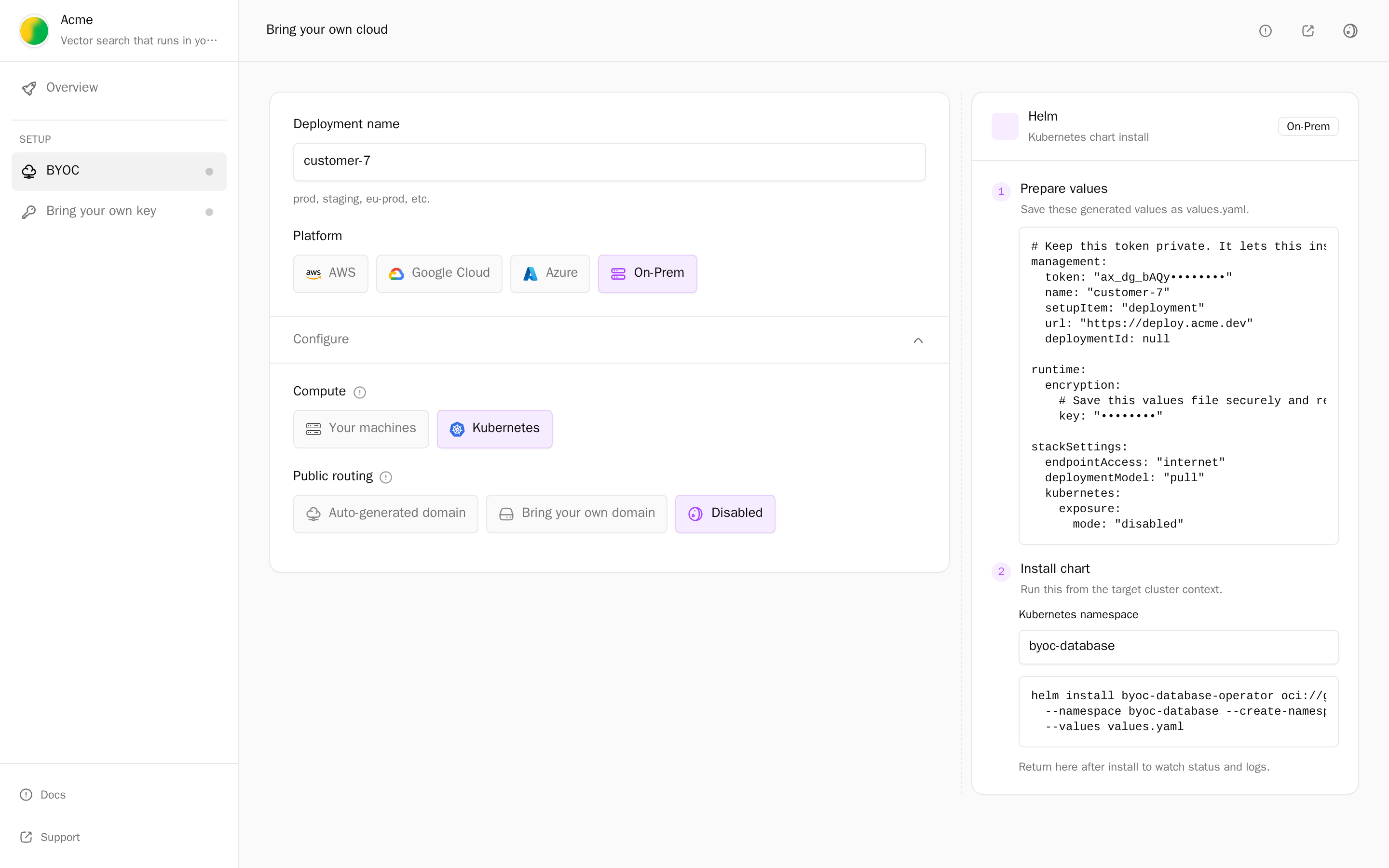
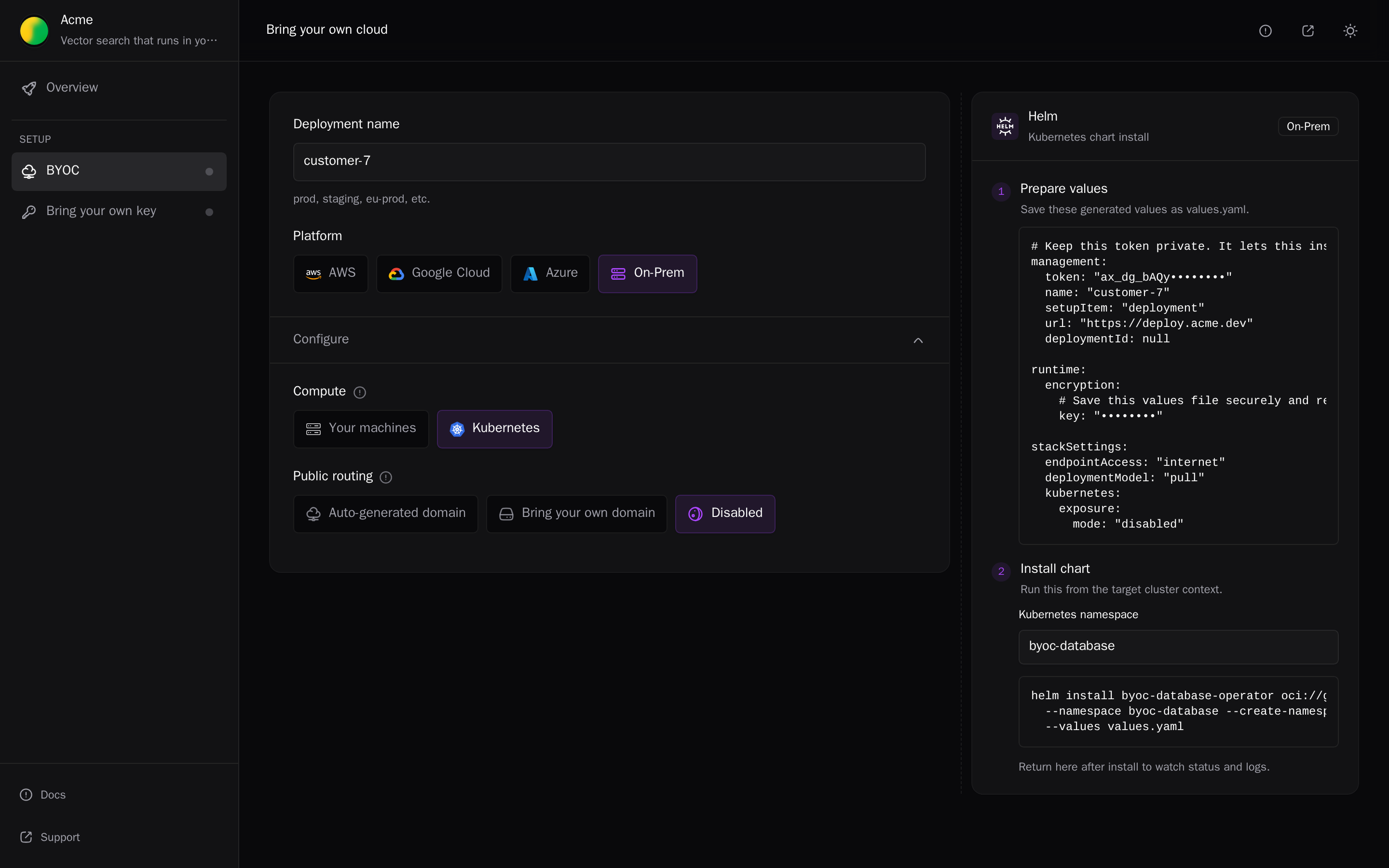
To create a setup link that offers only Kubernetes:
alien onboard customer-2 --platforms kubernetesIn the portal, the admin reaches Kubernetes from On-Prem or from a cloud:
- On-Prem, then Compute → Kubernetes: deploy into a cluster they operate, with Helm.
- AWS, Google Cloud, or Azure, then Compute → Amazon EKS, Google Kubernetes Engine, or Azure Kubernetes Service, and a Cluster source: create a new cluster or use an existing one.
Helm on an existing cluster
- Prepare values: save the generated
values.yaml. It holds the deployment's token and name. Keep it for later upgrades. - Install chart: set the Kubernetes namespace and run the command from a shell with the target cluster's context.
helm install acme-files <chart-from-portal> \
  --namespace acme-files --create-namespace \
  --values values.yaml
The portal fills in the chart reference and namespace. The Operator starts, registers the deployment, fetches the release, and deploys it. The deployment shows Running in a minute or two.
New EKS, GKE, or AKS cluster
A new EKS cluster is set up with CloudFormation (the default) or Terraform. A new GKE or AKS cluster is set up with Terraform.
- With Install chart automatically (Terraform only),
terraform applycreates the cluster and installs the chart. - With Install chart separately, or after the CloudFormation stack registers, the portal shows Connect your cluster: save
values.yaml, then install the chart withkubectlpointed at the new cluster.
Existing EKS, GKE, or AKS cluster
Terraform only. The admin sets the cluster in the generated main.tf (eks_cluster_name, gke_cluster_name and gke_cluster_location, or aks_cluster_name and aks_cluster_resource_group_name), then runs terraform init && terraform apply with TF_VAR_token set.
What initial setup creates
- The Operator, in the deployment's namespace, registered with Alien under the token in
values.yaml. - Your workloads, which the Operator creates in that namespace from the release.
- A new cluster, only when the admin chose to create one with Terraform or CloudFormation.
Frozen resources aren't created: they map to the customer's infrastructure. See Connect the customer's infrastructure.
Chart versions
Each release gets a new chart version. Alien serves the images and the chart, so you don't need a registry that customers can reach.
Connect the customer's infrastructure
The infrastructure map in the values file binds each frozen resource to something the cluster already has. For storage, that is S3 or any S3-compatible store:
infrastructure:
  files:
    type: storage
    service: s3
    bucketName: customer-2-files
    # For S3-compatible stores (MinIO, Ceph). Omit these three for Amazon S3
    # with the pod's own AWS identity.
    endpoint: https://minio.customer-2.internal
    accessKeyId: <access-key-id>
    secretAccessKey: <secret-access-key>
To keep credentials out of values files, store the map as JSON under the key external-bindings.json in a Kubernetes Secret, and set infrastructureExistingSecret to the Secret's name.
How updates arrive
Ongoing management on Kubernetes uses pull: the Operator connects out to Alien and applies what it finds on the deployment's release channel. Nobody runs helm upgrade for a release. See Push, pull, and air-gapped.
- Releases. Every
alien releaseon the deployment's channel reaches the cluster on the Operator's next sync, about every 30 seconds. Use channels and pins to stage rollouts. See Releases. - The Operator. It updates itself to the version Alien serves. Set
runtime.image.selfUpdate=falseto require ahelm upgradeinstead. - Images. Pods pull through Alien with the deployment's token. The cluster needs no credentials for your registry.
- Logs. The Operator collects your containers' logs and OpenTelemetry data and sends them out over the same connection.
- Commands. Commands reach your containers through the Operator.
- Requests. Your backend can call HTTP ports that a container declares with
.tunnel(port). See Tunnels. - Changes that need initial setup again. A release that needs a new frozen resource or permission can't be applied by a
helm upgrade. The portal tells the admin to keep the current release and contact you, so keep such changes out of releases for Helm installs. - Remote Operator. The chart can also run the Remote Operator for operations and access requests. It's off by default. Turning it on may need cluster-admin approval, because it adds a custom resource definition for access requests.
Tunnels
A tunnel lets your backend call an HTTP service inside the customer's cluster without anything opening inbound. The Operator holds an outbound WebSocket connection to the manager. Requests you send to the manager travel over it to the container.
Architecture diagram. Left: Your side, Your backend, Manager. Right: Customer cluster containing Operator; api :8080.
Declare the port your backend may reach. Only declared ports are reachable, and nothing is exposed on the customer's network:
const api = new alien.Container("api")
  .code({ type: "image", image: "ghcr.io/acme/api:1.4.0" })
  .port(8080)
  .tunnel(8080)
  .build()
Create a token that can call tunnels and nothing else, then call the container:
alien tokens create --tunnel                         # every deployment
alien tokens create --tunnel --customer customer-2   # one customer's deployments

curl "https://<manager-host>/v1/deployments/customer-2/tunnels/api/objects?prefix=reports/" \
  -H "Proxy-Authorization: Bearer ax_tunnel_..." \
-H "Authorization: Bearer <your application's own token>"- The path is
/v1/deployments/{deployment}/tunnels/{container}/{path}.{deployment}is the deployment's ID, or its name when that is unique. Everything after the container name, including the query string, is the path the container receives. Proxy-Authorizationauthenticates you to the manager, which removes it before forwarding.Authorizationand other end-to-end headers reach the container unchanged, so your application keeps its own authentication.- The container sees
X-Forwarded-ProtoandX-Forwarded-Hostfor the manager's public URL. - Bodies stream in both directions with flow control, and many requests share one connection. Tunnels carry HTTP requests only: WebSocket upgrades and raw TCP are not forwarded.
- A tunnel token can't read releases, deployments, or logs.
alien tokens revoke <id>takes effect on the next request.
Tunnels are served by a manager you run with alien serve or the alien-manager image.
Errors from the tunnel itself, rather than from your container, carry an alien-tunnel-error header:
| Status | Code | Meaning |
|---|---|---|
| 401 | Missing or invalid Proxy-Authorization | |
| 403 | The token can't call this deployment's tunnels | |
| 404 | TUNNEL_TARGET_NOT_FOUND | The container declares no tunnel |
| 502 | TUNNEL_UPSTREAM_UNAVAILABLE | The container didn't answer |
| 502 | TUNNEL_REQUEST_FAILED | The connection to the Operator broke mid-request |
| 503 | TUNNEL_NOT_CONNECTED | The deployment's Operator isn't connected, or initial setup set tunnel.enabled=false |
The Operator reconnects on its own after network interruptions and manager restarts.
If a proxy or load balancer sits in front of the manager, allow WebSocket upgrades on /v1/tunnel/connect. Set idle timeouts well above 20 seconds, the interval of the tunnel's keepalive pings.
Remove it
Delete the deployment from your side: Delete deployment, or alien deployments delete customer-2/customer-2. The deployment then shows Teardown required until the admin uninstalls the chart:
helm uninstall acme-files --namespace acme-filesA cleanup job removes the workloads the Operator created.
- Persistent volume claims stay unless
runtime.cleanup.onUninstall.deletePersistentVolumeClaims=true. - Infrastructure mapped in
values.yaml, like the bucket, is never touched. - A cluster that initial setup created with Terraform is removed with
terraform destroy.
Chart values
| Value | Description |
|---|---|
management.token | The deployment's token from the portal |
management.existingSecret | Read the token from a Secret instead |
management.name | Deployment name shown in the dashboard |
infrastructure | Frozen resources mapped to the cluster's infrastructure |
infrastructureExistingSecret | The same map, from a Secret |
runtime.image.selfUpdate | Follow the Operator version Alien serves. Default true. |
logCollector.enabled | Collect container logs. Default false. Set logCollector.mode to podApi (reads selected Pod logs through the Kubernetes API, no DaemonSet) or nodeAgent (a Fluent Bit DaemonSet). |
tunnel.enabled | Accept tunnel requests from the manager. Default true. |
airgapped.enabled | Take releases from sync bundles instead. See Air-gapped. |
helm show values <chart> lists the rest, including resources, scheduling, network policy, and security context.
To change values later:
helm upgrade acme-files <chart-from-portal> \
  --namespace acme-files --reset-then-reuse-values --values values.yaml
Next
- Push, pull, and air-gapped: how pull and air-gapped deployments get releases
- Linux servers: hosts without Kubernetes
- Remote Operator: operate the deployment
Azure
A deployment in a customer's Azure subscription: what the admin needs, initial setup with Terraform or the CLI, the managed identity and its role limits, updates, and removal.
Linux servers
A deployment on a customer's own Linux hosts: what they need, the join command, the machine agent that pulls releases, offline behavior, and removal.